How to Add Music to Video Without Overpowering Your Voice
How to add music to video without drowning out your voice: find usable tracks, balance levels, time edits, and compare free and paid editor plans.

Chapters
In short
Adding music to a video means placing an audio track beneath your footage and adjusting its timing and volume to suit the scene. Choose music you’re licensed to use, trim or loop it to fit, and keep it quieter than speech; separate tracks, fades, and ducking help you refine the mix. Preview the export to catch timing or volume problems, and choose an editor and plan that fit your device and publishing needs.
Think of a dinner party where the background playlist is so loud you have to shout to be heard. Your video can fall into the same trap.
Adding music to video means placing a track on its own audio layer under your footage, then setting its volume so it supports your voice instead of competing with it.
In this post, we’ll walk through where to find music you’re free to use, how to place and time it, how to balance it against your voice, and which app or editor fits your setup.
We’ll also look at what free and paid plans typically include, so you know what you’re getting before you export.
How to Add Music to Video
Adding music comes down to three moves: get your footage in, place your track on the timeline, then export a version you can share.
Start by uploading your video
Start by getting your footage into your editing app. You can upload it from two places:
- Computer or phone: upload the file straight from the device where it lives.
- Cloud storage: import footage saved online, such as in Google Drive or Dropbox, without downloading it first.
A course creator who filmed a lesson on her phone can import it from Dropbox at her desk, no copying needed.
Drop your audio track onto the timeline
Upload your own audio file, then drag it onto the timeline, the strip where your clips and tracks sit in order. Set the start time so the music begins where you want it. Think about when the music starts, not just what it sounds like.
A streamer with a short intro song starts it at the top and trims it so it wraps up as she begins talking. If your track is shorter than the video, loop it. If it runs long, trim it.
Export and share your finished video
When the mix sounds right, export it. Choose the format and resolution for where it’s headed. Then preview the full export before you download, since a quick watch-through catches any cue that starts late or runs long. That check saves a re-export.
A real estate agent exports one version for her website and another for social media, previewing each so the music lands right on both.
Once it’s ready, download the file or share it straight to your social channels. Save a copy to cloud storage so the finished version survives if your laptop doesn’t.

Where to Find Music for Your Video
Music can lift a home-filmed video, but only if you’re allowed to use it. Start with the sources below.
Use built-in royalty-free music libraries
Many editing apps include a catalog of royalty-free music, meaning you don’t owe ongoing fees for each use, though license terms still apply. Two places to look:
- Adobe Stock soundtracks: a searchable stock library of soundtracks you can license for your project.
- CapCut music library: built-in tracks you can drop straight onto your timeline.
Browse by genre or mood, like upbeat, calm, or cinematic, to match your clip. Pick tracks with no watermark so your export stays clean.
Built-in libraries are the easiest copyright-safe route. The real question isn’t whether a song is available but whether you’re licensed to use it.
Most songs carry copyright, the creator’s legal right to control use, and platforms may automatically flag recognized music, attaching a claim to your video. Check first. Keep license terms handy in case you need to prove permission.
How do I put a song into a video?
Here’s the short answer: import the track, drop it onto an audio track beneath your footage, and trim it to fit. Check which common audio formats your editor accepts before you download a track. Importing your own tracks works the same way.
Think of a podcaster recording an intro in a spare bedroom. She drops her theme song under her opening lines and turns it down, so her voice stays crisp.
Voiceovers and sound effects follow the same steps. Record your voice on its own track so you can adjust it separately from the music.
Control Audio Levels and Timing
Ever chased the volume knob to hear someone in a video? That’s a balance problem, and you can fix it before you export.
Balance your music with the original sound
Adjust each track’s volume separately, and mute original audio on any clip you’re replacing.
Set the voice-to-music balance so your voice leads. The goal is to lower the music, not push your voice louder.
Ducking automates this: the music dips when someone speaks and rises in the pauses. A fitness coach filming a living-room workout keeps the beat up during warm-up, then steps aside when she calls out reps so viewers catch every cue.
Record clean voice first, then add music. A quiet room and steady delivery are hard to fix later.
Trim, loop and time your music
Trim long tracks to the part you need, like an intro or a chorus. Short tracks need a loop, which repeats the clip to fill a longer video. Check where it repeats so it doesn’t jump.
Match the start time and length to the scene, and sync audio with video by lining a music hit or spoken word up with its on-screen moment.
When you can, cut to the beat. A real estate agent filming a listing tour times each room change to the rhythm, so the walkthrough feels deliberate.
Smooth audio with fades and noise cleanup
Fade in and out so music doesn’t start or stop abruptly. Speed control helps a clip land on a specific moment, but keep changes small, since a track pushed too far sounds off.
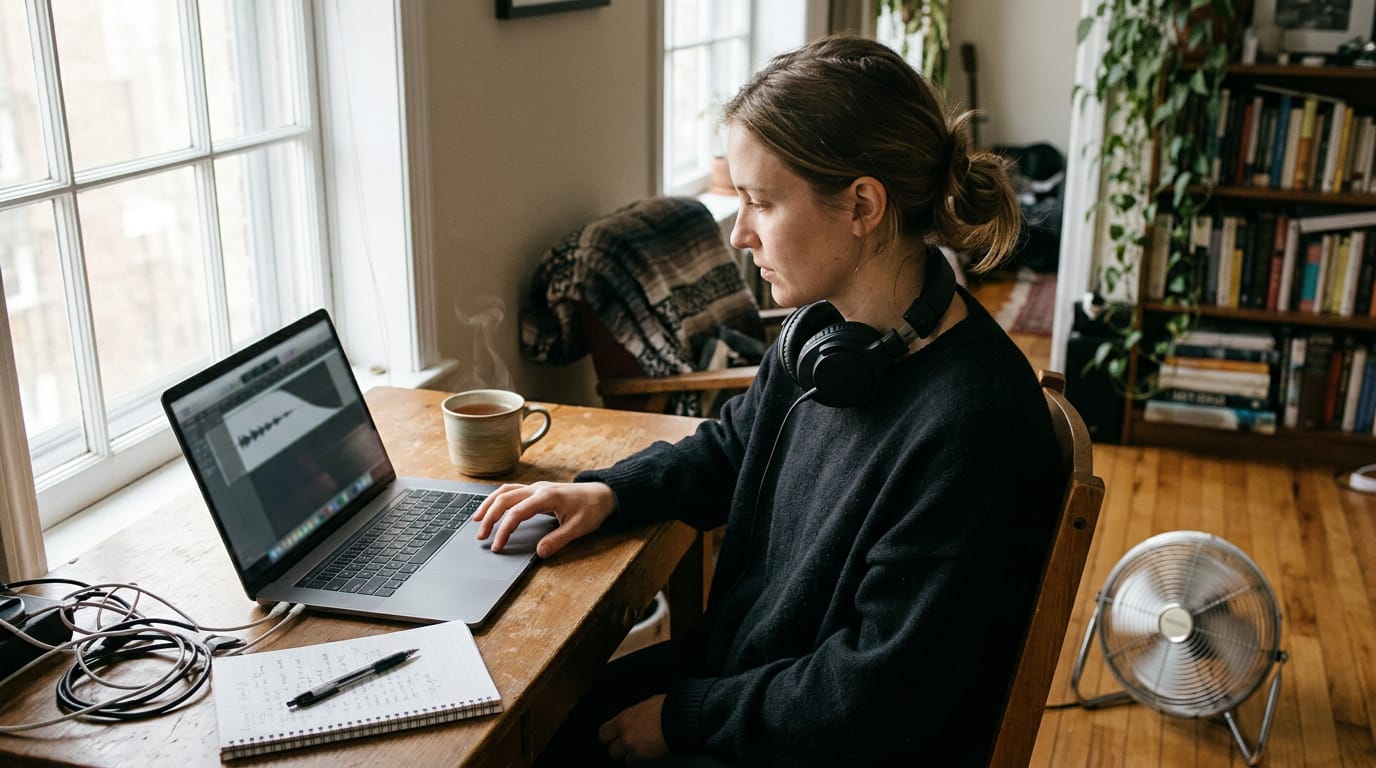
Background noise removal cuts hum from a fan or air conditioner. Apply it lightly to voice tracks, since heavy settings make speech sound thin. A streamer with a fan humming behind her runs a light pass and keeps her voice crisp.
If a mix starts sounding wrong, reset the clip’s audio to its defaults and rebuild from there. Light touches win.
Layer several tracks on one timeline
Your timeline, the strip where clips sit in order, can hold many audio tracks. Work through it in three moves:
- Add several songs to match each part of the video.
- Layer music, voiceover, and effects on separate tracks, so you can adjust one without disturbing the rest.
- Rearrange on the timeline until the order and timing feel right, then preview the whole video.
Choose the Right App or Editor
The right tool depends on where you’re working and where the video’s headed. Sort that out first.
Edit in your browser, no download
A browser-based editor runs in your web browser, not on your computer, so there’s no download required. It’s beginner-friendly and works on Mac and Windows. Nothing to install. Just open a tab and start.
How do I add music to an iPhone video?
If you film on an iPhone, the steps are simple: import the clip, place your track under it, then trim the music to match.
You can do that in a phone app for iPhone or Android, in a desktop version on a bigger screen, or in a mobile-friendly web interface that runs in your phone’s browser.
Take a streamer who records a quick recap after a Friday session, adds a track on her phone, and posts before dinner.
Pick music that suits each social platform
Match the track to the platform, not just the mood of the clip:
- YouTube: longer videos can carry a piece that builds and settles.
- TikTok: short clips need a track that grabs attention fast.
- Instagram: feed posts and Instagram Stories each set their own pacing, so one track rarely fits both.
Promo and real estate videos need the same care. Consider a real estate agent filming a listing walkthrough for social media.
She picks a light, steady track, lowers it so her voice sits on top, and the music never competes with what she’s saying about the kitchen.
Pick music per platform format, not once per project. Same clip, different track.
Why Music Helps and Extra Tools
Music does more than fill silence, and we’ll look at a few extra tools that make the job easier and safer.
Why adding music makes videos better
A soft, steady track boosts viewer engagement because it gives people a reason to stay. Picture a solo course creator filming a five-minute lesson in a spare bedroom.
With music underneath, viewers stay through the slow stretch where she explains her setup instead of clicking away.
Music also evokes emotion and sets the mood before a single word lands. Upbeat energy suits a product walkthrough, while something calmer fits a reflective intro. The goal is to help viewers feel the mood rather than notice the soundtrack.
Finally, a track that’s chosen with care and mixed at the right level gives your video a professional touch. Polish is in the small choices.

Teamwork, subtitles, text to speech and safety
Four tools are worth knowing about:
- Team collaboration. If you’re working with an editor or co-host, a shared project lets you both review the same timeline and leave notes in one place.
- Auto subtitles. Automatic captions transcribe your speech onto the screen, which helps viewers watching on mute and gives you a text version to proof.
- Text to speech. This turns typed script into a spoken voiceover, handy if you’d rather not record your own voice.
- Security of uploaded files. Music and clips from outside sources can carry risk, so stick to trusted sites and keep untouched copies of your originals.
What Free and Paid Plans Include
Before you commit to a plan, it helps to know what the free version covers and where it starts to pinch. Think of it as a test drive: enough to see whether the workflow fits your videos before you spend anything.
Free plan limits and what Pro unlocks
Here’s how the free tier stacks up against Pro on the points that matter for music:
- Free plan available. You can run a real clip through every music step before deciding anything.
- Watermark on free exports. Anything you export on the free plan carries a watermark, which makes it a good fit for drafts, practice runs, and private reviews.
- Resolution and upload limits. The free plan also caps export resolution and how much you can upload. Check the current numbers on the plan page before you map out a longer series, so a batch of episodes doesn’t stall partway through.
- Pro plan benefits. Pro is the paid tier to look at once those limits start getting in the way. Compare its current benefits against your publishing schedule before you upgrade.
Consider a podcaster who records each episode in a converted closet and drops a short music bed under the intro. On the free plan, she can finish a draft, check that the music sits quietly under her voice, and see how the timing feels.
Only when the episode is ready for the public feed does the Pro question matter. That’s the real trade-off: free is for testing the workflow, and the upgrade decision is about publishing needs. Test first. Upgrade when the video is ready to share.
Adding music to video really comes down to three choices: pick a track you have the right to use, place it where it supports the moment, and keep it quieter than your voice.
Get those right and your video sounds more polished, even when it was filmed in a spare bedroom.
Before you hit export, play the finished file on a different device and listen for one thing: can you still hear every word clearly? If the answer is yes, you’re in good shape.
Your viewers will feel the music without ever having to think about it, and that’s exactly the point.
Questions
What are some free video editing tutorials available online?
Free video editing tutorials are available on platforms such as YouTube, and many editing apps offer beginner lessons or help centers. Look for tutorials on importing clips, using the timeline, adding music, adjusting audio levels, and exporting.
How do I add background music to a video?
Import your video into an editor, then upload a music file or choose a track from the editor’s library. Place it on an audio track beneath the footage, trim or loop it to fit, adjust its volume so it does not compete with speech, and preview the finished video before exporting.
How do I add music to an iPhone video?
Use an iPhone editing app or a mobile-friendly web editor: import your video, add a music track beneath it, and trim the track to match the clip. Lower the music if there is speech, then preview the mix before exporting. Check the track’s license before sharing the video.
How do I put a song into a video?
Import the video and the song into an editing app, then place the song on an audio track beneath the footage. Trim or loop it to fit, set its start time and volume, and export after checking that you have permission to use the song.
How to use it video?
To use a video editor, import your footage, arrange clips on the timeline, and add music on a separate audio track. Adjust timing and volume, preview the result, then export it in a format and resolution suited to where you’ll share it.
How do I make a video recording?
Open your phone’s camera or a camera app, choose video mode, and tap the record button to start. Tap it again to stop, then review the clip and save or import it into an editor if you want to add music or make other changes.
How much does it cost to make a video?
The cost depends on whether you make it yourself or hire professionals, and on the video’s length, equipment, editing, and licensing needs. Basic editing can be done with a free plan, though it may include limits such as watermarks, reduced export resolution, or upload caps; check current plan details before publishing.
Can I add music to my video for free?
Yes. Many video editors offer free plans or built-in music libraries, and you can also use music you have permission to use. Free plans may add a watermark or limit resolution and uploads, and royalty-free tracks still have license terms you should check.