Use Your Phone as a Webcam on Mac, PC, or Android
Use your phone as a webcam on Mac or Windows with built-in tools, apps, or a cable, then improve framing and troubleshoot common setup issues.

Chapters
In short
Using a phone as a webcam means connecting its camera to a computer for video calls, streaming, or recording, often with better image quality than a laptop webcam. Choose a built-in option, companion app, or browser method for your devices; use USB for a steadier connection and Wi-Fi for flexibility, then mount the rear camera at eye level and light your face from the front. A stable mount, good lighting, power, and a quick audio and video test matter more than buying extra camera gear.
Picture a video call where your face looks sharp, your background is tidy, and you didn’t spend a dime on new gear. The camera you need might already be in your pocket, ready to step in as a webcam on a Mac, a Windows PC, an Android phone, or an iPhone.
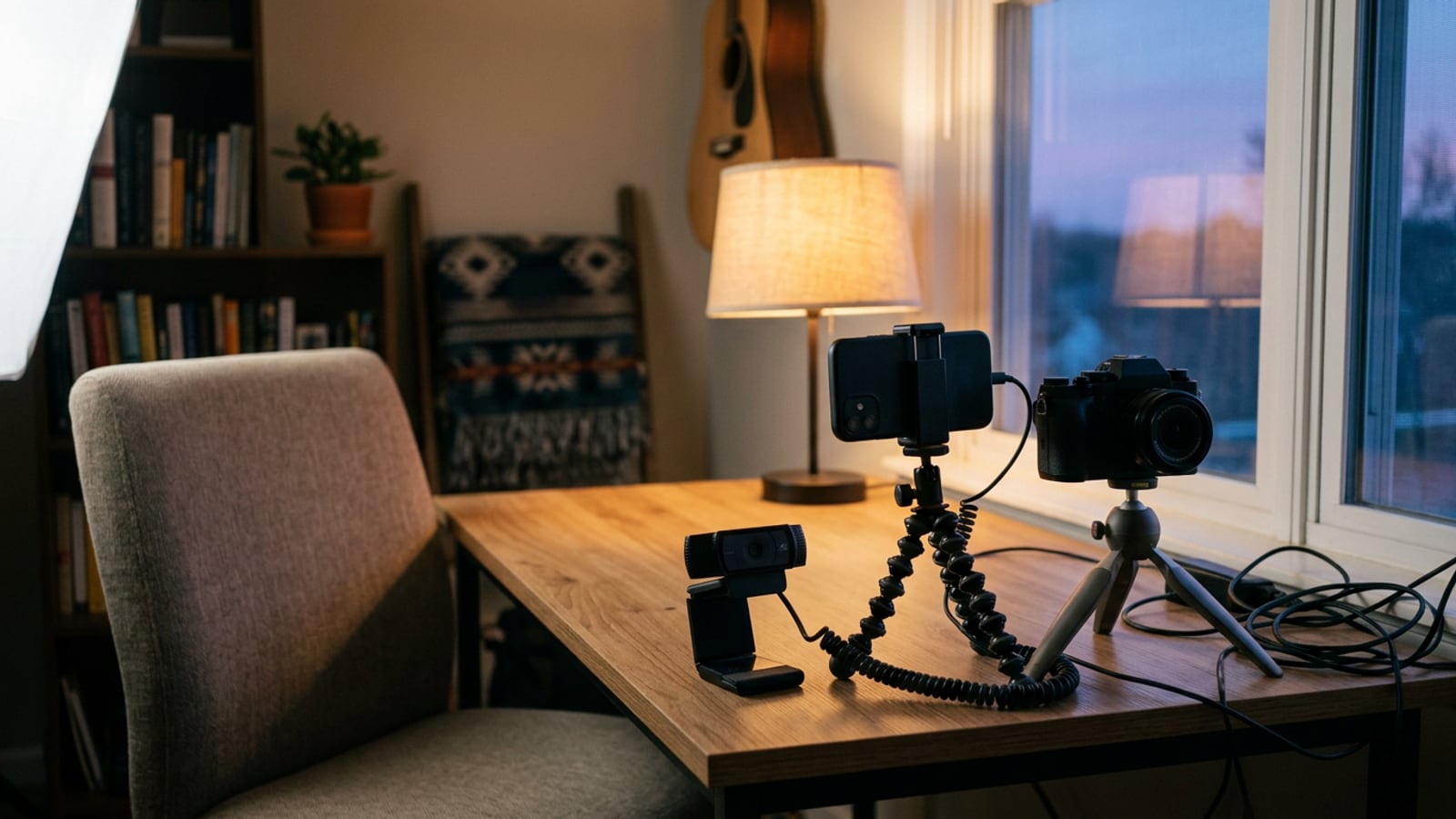
In this post, we’ll walk through the built-in options, app-based routes, and a simple cable hookup. We’ll also cover the creator edge: fixing your light and mounting your phone so it can beat a standard webcam.
Why Use a Phone as a Webcam
Chances are the phone in your pocket already has a better camera than the one perched on top of your laptop. Here’s why that matters for your calls, streams, and recordings.
Where phone cameras beat laptop webcams
According to TechRadar, a phone can give you better image quality than a laptop webcam, and in most cases the webcam simply can’t keep up.
Low-light performance is where the gap shows up most. When the room gets dim, phone cameras hold their detail better, so your late-night stream doesn’t turn grainy.
Sharper image and skin tones go hand in hand. Faces look crisper, and skin looks more natural instead of flat or washed out.
Better autofocus keeps you sharp when you move. Consider a course creator who leans toward the camera to make a point. The phone tracks that move, so she stays in focus instead of going soft.
The real win is about how your image looks, not what the spec sheet promises.
Practical perks and a more polished look
The practical side is just as appealing:
- Cost-effective. You already own it, so there’s no new webcam to buy.
- Portable and flexible. Clip it to a shelf, a stand, or a tripod and point it wherever the frame works best.
- Multi-functional. The same device handles video calls, photos, and recordings.
- More professional look. Mounting it at a deliberate angle makes your setup look intentional, not improvised.
The camera is only half the picture, though. Light and placement do the rest, and that’s where you can really pull ahead.
What You Need Before You Start
Before you open a single setting, check that your phone and software can handle the job.
Phone and software versions you need
Any recent iPhone or Android works if its software is up to date. For iPhones, Atlassian’s Loom device compatibility page lists iOS 15 or later, and on Android you’ll want version 11 or newer.
Pick the rear camera, not the selfie lens. Its main lens is the one you’d trust for a proper shot.
Gear worth adding to your setup
A few extras keep your picture steadier and clearer:
- Tripod or clamp mount. Holds the phone at eye level.
- Charging cable or power. Keeps the battery from dying mid-call.
- External or lapel microphone. Sounds clearer than the phone’s built-in mic, which picks up the whole room.
- Fast internet connection. A slow link makes your video stutter.
How to light yourself on camera
Light does more for your picture than the phone does, so sort it out first. Set your key light, the main light that shapes your face, in front of you or about 45 degrees to one side.
Keep bright windows and lamps behind you, since backlighting turns you into a silhouette.
Daylight from a window is soft and free, and a ring light helps when the room is dim.
Consider a course creator filming lessons at a kitchen table with a bright window behind her. She turned her chair so the window sat off to one side, and her face didn’t vanish into shadow anymore. No new gear needed.
It’s less about which phone you own and more about where the light falls. Light first, phone second.

Can an IPhone Work as a PC Webcam?
Yes, but the route depends on your computer. Apple builds an option into the Mac, while a Windows computer typically needs an app or a browser method.
Next to a dedicated webcam or full camera, your phone sits in a useful middle ground: its lens is already there, and the biggest upgrade is light, not more gear.
Apple’s built-in option for iPhone and Mac
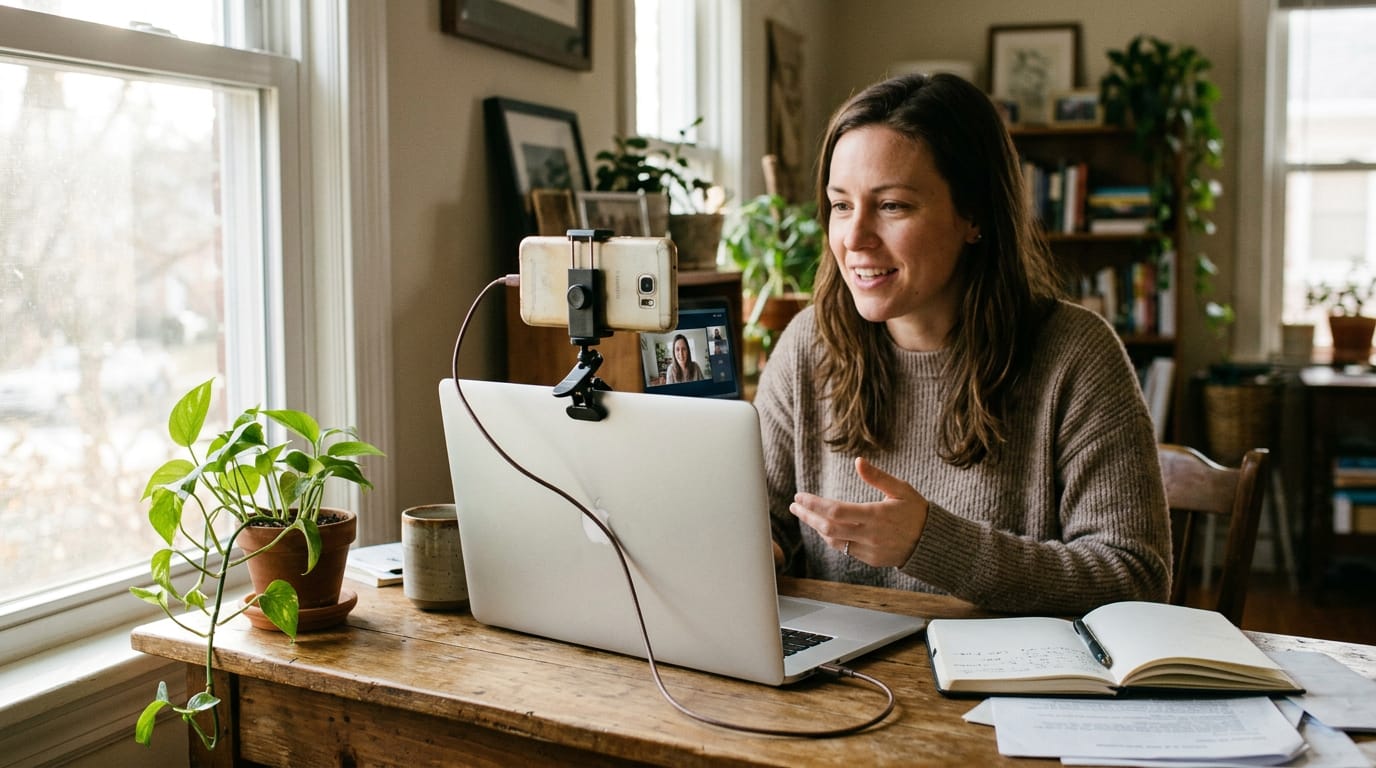
If you have both an iPhone and a Mac, start here. Apple’s Continuity Camera lets your iPhone act as the Mac’s webcam, and it’s built in, so there’s no app to install. Consider a course creator who props her iPhone on a shelf above her monitor.
With Continuity Camera, she records her next lesson with nothing extra to download and her phone already in position.
Popular apps like DroidCam and EpocCam
If you’re on a Windows computer or would rather not rely on Apple’s setup, a third-party app is the next step. DroidCam, EpocCam, Camo, Iriun, and iVCam each pair a phone app with companion software on your computer.
Android owners have a wired option too. To enable webcam on Android phone:
- connect it to your computer with a Universal Serial Bus (USB) cable,
- turn on webcam mode, and
- let the companion software take over.
Plug in, switch on, done.
Free browser option with VDO.Ninja
Not every route needs a download. VDO.Ninja is a free, browser-based method that works on Windows, macOS, and Linux, and it supports both iPhone and Android.
There’s no app install needed, so a podcast host joining a guest from a borrowed laptop skips the install entirely. The light is what makes it worth looking at.
Choosing Between a USB Cable and Wi-Fi
Both routes connect your phone to your computer, but they behave differently on a live stream. Here’s how to choose the right one for your room.
Why a cable gives steadier, better video
A cable is the more dependable pick for most creators. It keeps the connection steady even when your Wi-Fi is busy with everything else in the house.
- Stable connection: the link doesn’t depend on signal strength, so it holds up on a busy network.
- Lower latency: a setup guide from OBS Versions notes that USB can provide lower latency than Wi-Fi, meaning less delay between what your camera sees and what viewers see.
- Better quality: the picture takes a more reliable path, so the clean image you set up is the one your audience gets.
- Charges your phone: the battery stays topped up through long sessions.
Think of a podcaster recording a two-hour interview from a converted closet. One plug-in keeps her phone charged, and the video stays smooth when the household Wi-Fi gets busy.
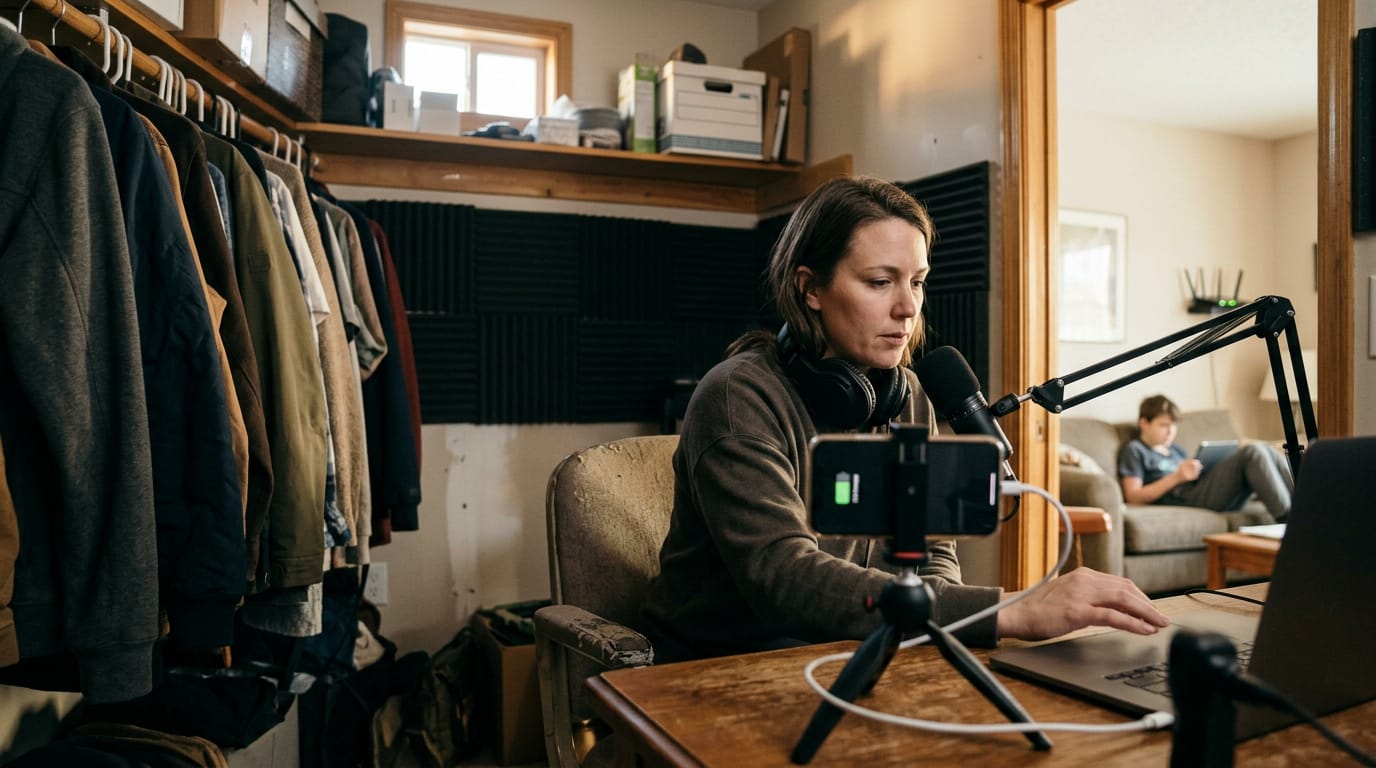
What wireless gains and what it costs
Wireless trades stability for freedom. Here’s what that looks like in practice:
- More flexible: you can reposition the phone without a cable pulling it off the mount.
- Less stable: the video depends on signal strength, so it can stutter when the network gets crowded.
- Same network required: your phone and computer have to sit on the same Wi-Fi network.
- Fine for testing: it’s a handy way to check your angle and light before you hit record.
Use wireless to dial in your setup, then switch to a cable when it’s time to go live.
Steps to Set up Your Phone Camera
Most of this is one-time setup. Three jobs get you there: connect, point your app, then tune.
Install the app and connect your devices
Install the app on both devices, then pick a connection:
- USB (Universal Serial Bus). A cable gives a direct, wired link.
- Wi-Fi. Keep both devices on the same network.
Allow camera and mic permissions when prompted. On an iPhone and a Mac, use the same Apple ID and keep Wi-Fi and Bluetooth on. A podcaster filming in a converted closet does this once and then starts every episode with a click.
Can I connect my phone camera to Zoom?
Yes, and it’s quick once the phone is linked. Here’s the path in Zoom:
- Connect the phone. Confirm it shows up as a camera option.
- Open settings. Go to video and open the camera menu.
- Select the app camera. Pick it and check the preview.
Teams, Skype, and Meet work the same way. Discord does too, so if you’re asking how to use your phone as a camera on Discord, open its video settings and pick the phone feed before you join.
How to connect iPhone camera to OBS?
Connecting an iPhone to OBS (Open Broadcaster Software), the streaming software, takes a few more steps:
- Open the link. Open the vdo.ninja push link on your iPhone.
- Add a Browser Source. In OBS, add the link so the feed shows in your scene.
- Control audio via OBS. Manage sound inside OBS, not on the phone.
- Start the virtual camera. Click Start OBS Virtual Camera.
- Choose it as input. Select OBS Virtual Camera in your video app.
A streamer who wants a second angle over her desk gets it without buying another camera.
Tune resolution, focus, and audio source
Resolution sets how much detail the picture holds, and frame rate sets how smooth motion looks. Higher settings look sharper but ask more of your connection, so start in the middle.
Next, lock focus and exposure so the picture holds steady rather than drifting when you shift in your chair. Lock it once, then stop fiddling.
Last, pick your audio source: the phone’s mic if it sits close to you, or a separate mic if you have one. Your voice matters as much as the picture.
Framing Your Shot for Different Activities
The same phone can handle a yoga flow or a one-on-one coaching call, as long as the frame fits the job.
Choosing the best angle and framing
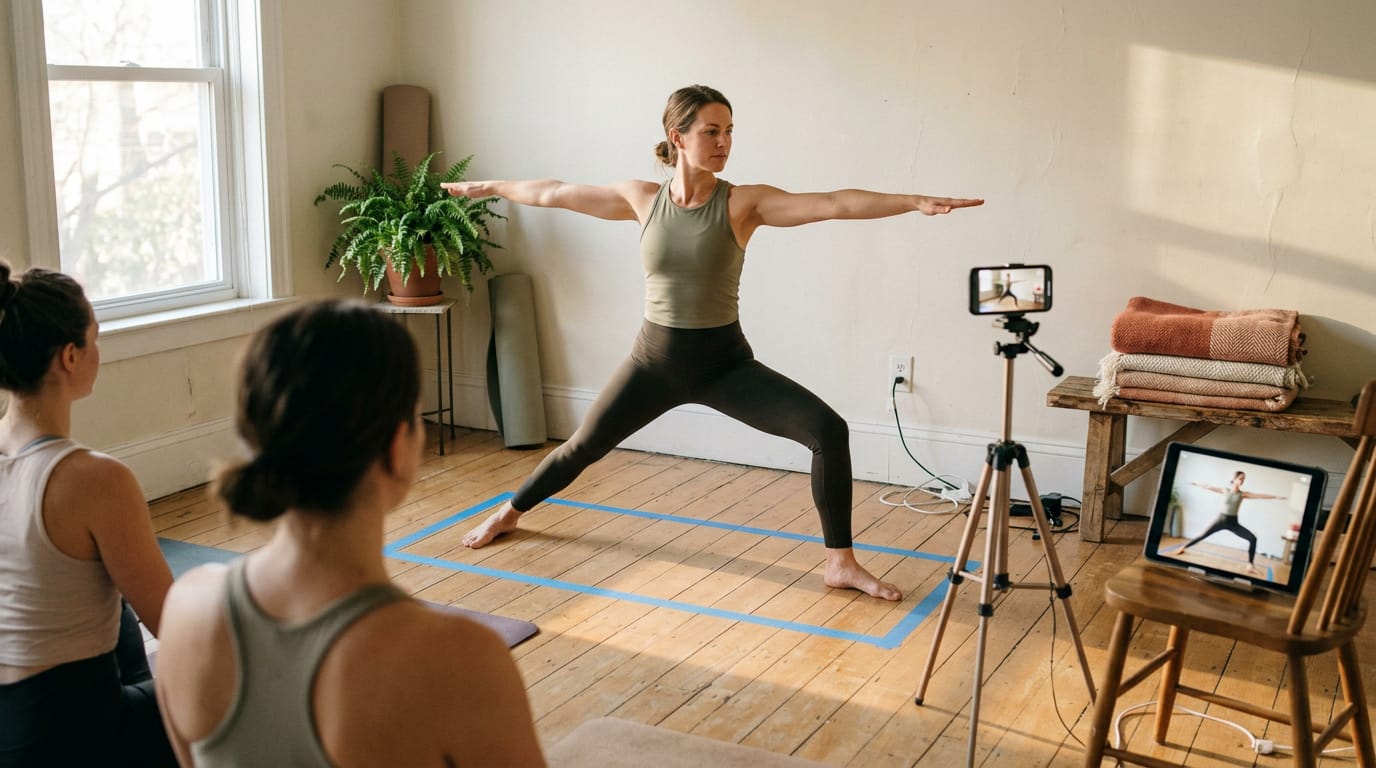
Frame for what students need to see, not how much of the room fits. Picture a yoga teacher in her spare room. She steps back until her hands and feet both stay in view, so students can follow each move.
Match the angle to the activity:
- Full-body for movement classes. Step back until your whole body fits, with room to move.
- Closer framing for coaching. Move to chest-up for one-on-one sessions so expressions and corrections read clearly.
- Side angle demos. Set the phone to your side to show form, like a squat or a serve.
- Mark your teaching zone. Tape a rectangle on the floor so you don’t drift out of frame.
- Use rear camera. Shoot on the rear lens and check framing on a second screen, since you can’t see yourself on it.
Pre-class checklist for Zoom and Marvelous
Run this short list before every session, since a quick check beats a frozen frame mid-class. Test early.
- Plug in the phone and silence notifications so a pop-up doesn’t cover the frame.
- Confirm the frame and teaching zone tape are still in place.
- Record a short clip and play it back for picture and sound.
Zoom integration comes next. Once the phone is connected as a camera, pick it in Zoom’s video settings and join a test meeting.
Marvelous live broadcasting works the same way: run a test broadcast, then check it on a second device.
Recordings saved to library come last. Confirm the recording reaches your library, then play back a minute to check the framing.
Tips, Fixes, and the Downsides to Know
A phone webcam can look sharp and still give you trouble mid-call. We’d aim for prevention rather than rescue.
Keep your video running smoothly
- Close background apps. Anything else using processing power can make your video stutter.
- Silence notifications. A pop-up mid-call distracts everyone, so turn on Do Not Disturb first.
- Test before important calls. Run a quick test a few minutes early. A course creator who checks framing and sound first avoids surprises mid-class.
- Keep a laptop backup. If the phone drops out, switch to your laptop’s built-in camera.
Fix the problems you’ll likely hit
- Backlighting. A window behind you turns your face into a dark shape. A podcast host who swivels her chair toward it gets a lit face in seconds.
- Focus hunting. If the picture keeps softening and sharpening, hold still and lock focus if your app allows.
- Audio echo or mismatch. Echo usually comes from your speaker feeding your mic, so wear headphones. If sound drifts from the picture, check your call app’s mic setting.
- Grey or black virtual camera. Your call app may be pointing at the wrong source. Select the virtual camera in its camera list, then rejoin.
- Restart the virtual camera if it crashes. Quit the companion app, reopen it, and reconnect before you join.
Where a phone falls short
- Battery drain. Video uses power fast, so plug in for anything longer than a quick check-in.
- Overheating. A hot phone can slow down or cut out, so keep it out of direct sun and give it breaks.
- Network instability. A shaky Wi-Fi signal makes the feed stutter, so stay close to your router or use a cable.
- Limited dedicated-webcam features. A phone offers fewer manual controls, so the fix usually comes from light and placement, not the settings menu. Fix the light first.
A phone can take the place of a dedicated webcam, but the real difference comes from how you set it up. Choose the route that fits your computer, then spend your effort on the light and a steady mount at eye level.
A window placed at the right angle and a phone held still will do more for your picture than any extra gear you might buy.
You don’t need a studio to look like you know what you’re doing. Your phone already has the lens, so give it good light and let it do the rest.
References
- Loom device compatibility | Loom — support.atlassian.com (2025)
- Should you ditch the webcam and just use your phone? — techradar.com (2025)
- DroidCam OBS Plugin Setup Guide: USB, Wi-Fi, Black Screen Fixes — obs-versions.com (2026)
Questions
How to enable webcam on Android phone?
Connect your Android phone to a computer with a USB cable, enable webcam mode on the phone, and let compatible companion software use its camera feed. Allow camera permissions when prompted, then select the phone or app camera in your video-call software.
How to connect iPhone camera to OBS?
Open a VDO.Ninja push link on your iPhone, then add that link as a Browser Source in OBS. Manage audio in OBS, and if you need to send the OBS scene to another app, click Start OBS Virtual Camera and select it there.
How do I activate my webcam on my phone?
To use your phone as a webcam, connect it to a computer by USB or Wi-Fi and use a compatible built-in feature or webcam app. Allow camera and microphone permissions, then select the resulting camera feed in your calling or streaming app.
How can I disable my webcam?
To disable webcam access, turn off webcam mode or disconnect the phone from the computer. You can also revoke camera permission for the webcam app in your phone’s privacy or app settings, or select a different camera in your video-call software.
How do I use my phone as a camera on Discord?
Connect your phone as a webcam using a compatible app or browser method, then open Discord’s video settings and select the phone’s camera feed before joining a call. Allow camera permission when prompted.
Can I connect my phone camera to Zoom?
Yes. Connect the phone using a compatible webcam app or browser-based method, then open Zoom’s video settings and select the phone feed from the camera menu. Check the preview before joining the call.
Can you use an iPhone as a webcam on a PC?
Yes. On a Mac, Apple’s Continuity Camera lets an iPhone act as a webcam without installing an app. On a Windows PC, use a compatible phone webcam app with its companion computer software, or a browser-based option such as VDO.Ninja.
Can you use your phone as a webcam on PS5?
A phone generally cannot connect to a PS5 as a webcam through the standard webcam setup described here, which connects the phone to a computer. PS5 camera support is designed for compatible PlayStation cameras; use a supported camera for PS5 video features.
Sources
- Should you ditch the webcam and just use your phone? | TechRadar, techradar.com,
- Loom device compatibility | Loom | Atlassian Support, support.atlassian.com,
- DroidCam OBS Plugin Setup Guide: USB, Wi-Fi, Black Screen Fixes | OBS Versions, obs-versions.com,