Webcam vs phone vs camera for YouTube: which to use
Webcam, phone or mirrorless camera: what each shows on screen, how each plugs into a computer, what it costs, and when the phone you own is enough.

Chapters
In short
In a well-lit room, the rear camera of the phone you already own is enough for most talking-head videos, and a 1080p webcam is enough for calls, streams and desk videos. A mirrorless camera is worth buying once the light is right and you want a softer background, lenses and a picture that holds up in less light; before that, a light does more for the picture than any of the three.
Fix the light, then film with the phone you already own. In a well-lit room, the rear camera of a recent phone films a talking head well enough for YouTube, a 1080p webcam is enough for calls, streams and desk videos, and a mirrorless camera earns its price when you want a softer background, a choice of lenses and a picture that holds up in less light. In a dim room the gap between the three widens fast, and the cheapest way to close it is a light, not a camera.
The short answer: light first, then the camera
Every camera turns light into a picture, and the smaller its sensor, the more light it needs. Webcams and phones have small sensors. In a dim room they push their exposure up to compensate, and the picture turns grainy and soft, skin loses its texture to noise reduction, and some webcams slow their frame rate to gather more light. A mirrorless camera’s larger sensor holds up longer, but it still looks better with the light right.
Put the same webcam in front of one soft key light at 45 degrees and the picture changes more than a new camera would change it. Once the light is right, a better camera’s difference shows; before that, you mostly pay for a sharper view of a dark room. So the order is light, then sound, then the camera. If you are choosing now:
- You film at a desk, take calls or stream: a webcam.
- You record videos and own a recent phone: the phone, on its rear camera.
- The light is right, and you want background blur, lenses and long recordings: a mirrorless camera.
What a webcam does well, and where it stops
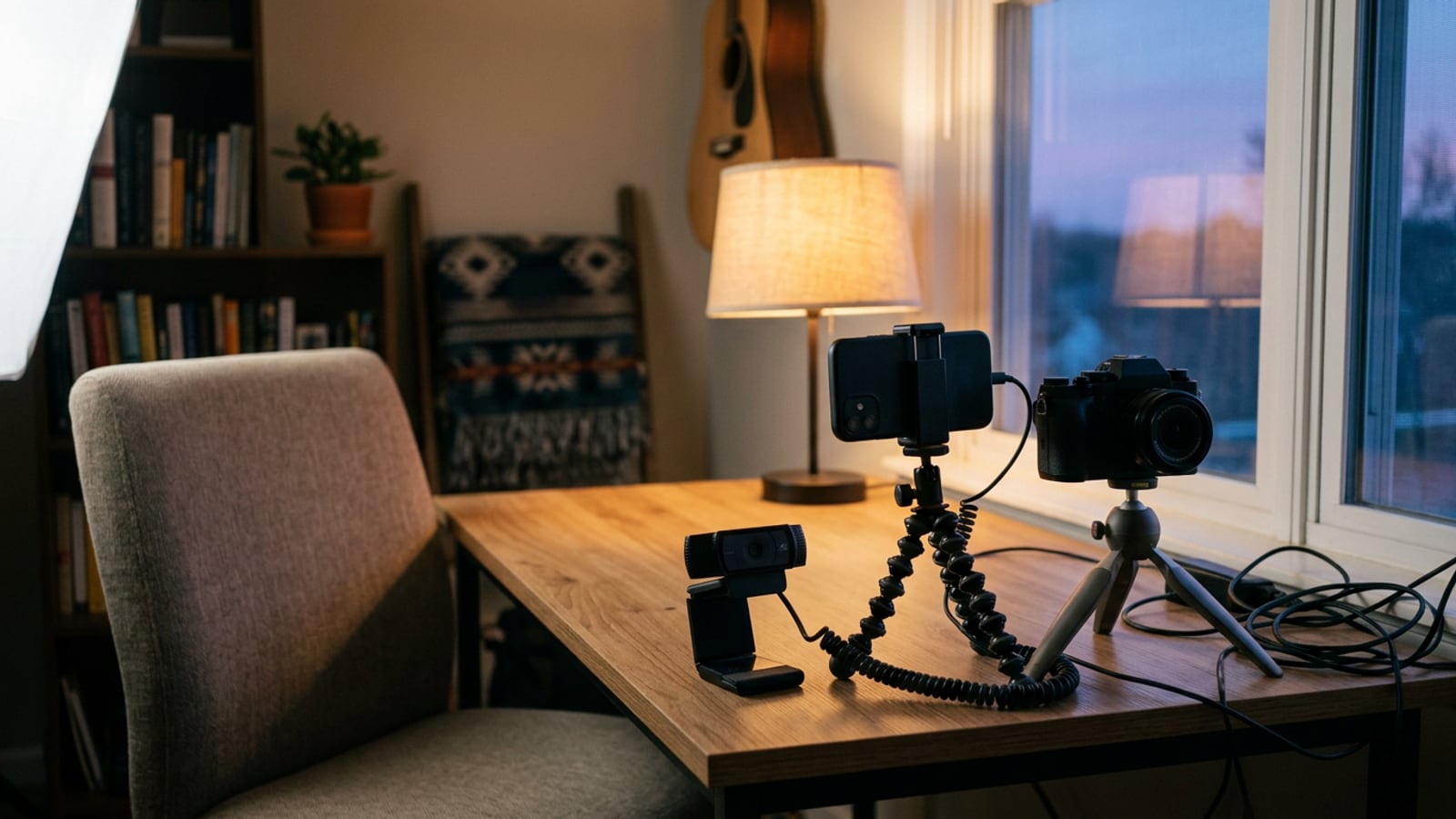
A webcam is the easy one. It clips to the top of the monitor with the lens close to eye level, plugs into USB, needs no battery and works in every app on the computer. Two on the Kit page show the range:
- Logitech C920s ($69.99): 1080p at 30 fps, autofocus, a fixed 78-degree field of view and a flip-down privacy cover.
- Elgato Facecam MK.2 ($119.99): 1080p at 60 fps from a 1/2.5-inch Sony sensor, fixed focus from about 12 to 47 inches so it never hunts, and manual exposure in Elgato’s free Camera Hub app.
Where a webcam stops:
- Low light. The small sensor is the first to turn grainy when the room is dim.
- A wide, fixed lens. At 78 to 84 degrees it takes in a lot of the room behind you, and almost everything is in focus, so the background stays sharp and busy.
- Automatic everything. Exposure and white balance drift as you move or the light changes, and autofocus can hunt when you lean in. Turn the automatic settings off in the maker’s app wherever it offers them.
- It records only to the computer. No card, no file of its own.
Filming on the phone you already own
For a recorded video, the phone in your pocket is usually the best camera you already own. Film on its rear camera: on most phones it has the bigger sensor and the better lens, while the selfie camera is the convenient one. The catch is that you can’t see yourself, so frame the shot once, check it on the first take, and mark where the tripod and the chair stand.
- Mount the phone in a clamp on a tripod, lens at eye level, in landscape.
- Turn on airplane mode or Do Not Disturb so a call can’t interrupt a take.
- Press and hold on your face on the screen to lock focus and exposure.
- Record in the camera app, to the phone’s own storage, and copy the file to the computer after. That gives the best picture the phone can make.
- Plug the phone in for long takes, and check free storage first: 4K video fills a phone fast.
Where a phone stops: its sensor is still small next to a camera’s, its processing decides how your skin looks, and long 4K takes in a warm room can make it hot enough to dim the screen or switch camera features off until it cools.
When a mirrorless camera is worth it
A mirrorless camera is worth buying once the light is set and you want what a phone can’t give: a larger sensor that keeps detail in less light, a background that falls soft behind you with a lens at f/2.8 to f/4, lenses you can change, and a proper mic input. The camera in the Kit, the Fujifilm X-M5, is a compact one: an APS-C sensor of 23.5 by 15.6 mm, a vari-angle screen you can turn to face you, 4K at 60 fps and 6.2K, and 3.5 mm jacks for a microphone and headphones.
What gets in the way:
- The cost. A body and a lens cost many times what a webcam does, before cards, spare batteries and a mic. What it costs to start a YouTube channel puts the camera after the lights and the mic at every budget.
- Power. Fujifilm’s own figure for the X-M5 is roughly 50 to 85 minutes of 4K per battery, depending on how you use it. For long sessions, run the camera from mains power where its maker allows.
- Heat, time limits and setup. Long 4K takes warm any camera, many older ones stop a clip just short of 30 minutes, and focus, exposure, white balance and shutter all want setting by hand, once.
Using a phone or a camera as a webcam
For a recorded YouTube video you don’t need any of this: record on the phone or camera and copy the file. Connecting it as a webcam is for live streams, calls and recording yourself alongside your screen in OBS Studio.
Tip: whatever you connect, plug it into power too. A phone or a camera streaming video all afternoon runs its battery flat long before the call ends.
A phone
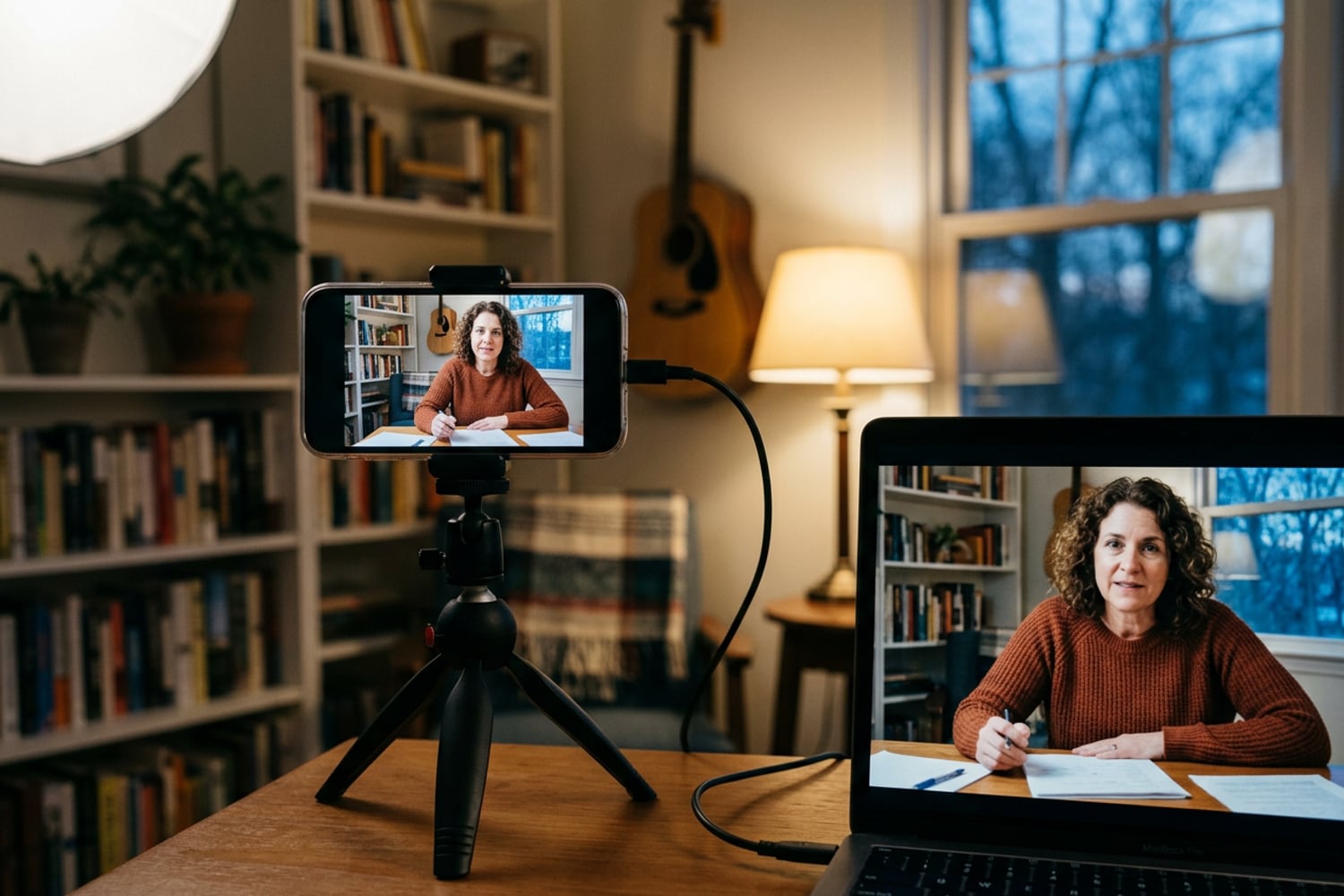
- iPhone with a Mac: Continuity Camera is built in. It needs an iPhone XR or later on iOS 16 or later, a Mac on macOS Ventura or later, and both signed in to the same Apple Account with two-factor authentication. It works wired or wireless; mount the phone locked and steady, rear cameras facing you, then choose it in the app’s camera menu.
- Android with Windows 11: through Phone Link, Windows can use your linked phone as a connected camera. It needs Android 10 or later and the Link to Windows app on the phone; turn it on in Settings, under Bluetooth & devices, then Mobile devices.
- Any other pairing, such as an iPhone with Windows or an Android phone with a Mac: Camo, in the Kit, works with both phone systems on Mac and Windows. Its free plan goes up to 720p and Pro up to 4K.
A camera
Try these in order:
- A USB webcam mode in the camera’s menu. Many recent cameras have one. On the X-M5 you allow data over USB in the network/USB menu, choose USB WEBCAM as the connection mode, connect the cable, turn the camera on and pick it in your app.
- The maker’s webcam app, for older models. Fujifilm’s is X Webcam; check your camera’s maker for its own.
- An HDMI capture device. The Elgato Cam Link 4K ($99.99) turns a camera’s HDMI output into a USB webcam signal, up to 4K. The camera must send a clean, unencrypted HDMI signal, without the on-screen menus, and keep running without switching itself off, so check both in its manual before you buy.
Side by side
| Webcam | Phone (rear camera) | Mirrorless camera | |
|---|---|---|---|
| Cost in the Kit | $69.99 to $119.99 | Nothing if you own one; Camo free to 720p | Many times a webcam; Cam Link 4K $99.99 if needed |
| In good light | A clean 1080p picture | Sharp, up to 4K | Sharp, up to 4K and beyond |
| In a dim room | Grainy and soft first | Usually holds up better than a webcam | Holds up best of the three |
| Background | Wide and mostly sharp | Mostly sharp | Can fall soft with a lens at f/2.8 to f/4 |
| Focus | Autofocus (C920s) or fixed (Facecam MK.2) | Automatic; lock it on your face | Automatic with face detection, or by hand |
| How it connects | USB, in any app | Records itself; or Continuity Camera, Phone Link or Camo | Records to a card; or a USB webcam mode or HDMI |
| What gets in the way | A small sensor and a wide lens | Storage, heat, notifications, framing blind | Price, battery, heat and setup |
Settings that matter on all three
A better camera on automatic settings still drifts mid-sentence. Set these once and leave them, on whichever you use:
- Exposure, set on your face and locked. On a phone, press and hold on your face; on a webcam, turn auto exposure off in its app; on a camera, set it by hand at the lowest ISO the light allows, and add light before you raise the ISO.
- White balance by hand, matched to the light on your face: 5600K for daylight and daylight LEDs, never auto.
- Frame rate and shutter. 24 or 30 fps for a talking head, with the shutter at 1/60 on US 60Hz power, which also stops mains-powered lights flickering, or 1/50 on 50Hz power.
- Lens at eye level, 2 to 3 feet from you at a desk and 4 to 6 feet on a tripod in the room.
- Sound from a mic close to your mouth. The built-in mic is the weak point of all three, and a mic a few inches away matters more than the camera it plugs into; the Kit page has several.
The Light Planner lists the settings every setup starts from, and each of its plans gives the camera distance for your room. More on choosing and setting up the camera in Cameras.
Questions
Is a phone better than a webcam for YouTube?
Usually, if you use its rear camera: on most recent phones it has a bigger sensor and better processing than a desk webcam, and it records to its own storage at up to 4K. A webcam wins on convenience, because it sits on the monitor, needs no mount or charger and is ready when the computer is. For calls and live streams the webcam is simpler; for recorded videos the phone usually gives the better picture.
Do I need a capture card to use my camera as a webcam?
Not always. Many recent cameras have a USB webcam mode in their menus, and some makers offer a free webcam app for older models, so check your camera’s manual first. You need an HDMI capture device such as the Elgato Cam Link 4K only when the camera offers neither, and then the camera must send a clean HDMI signal and keep running without switching itself off. For recorded videos you need neither: record to the card and copy the file.
Is 1080p enough for YouTube videos?
Yes, for a talking head. YouTube’s own upload recommendations cover 1080p alongside 4K, and a well-lit 1080p picture looks better than a dim 4K one. Recording in 4K helps when you want to crop in during the edit: a 4K frame is twice as wide and twice as tall as a 1080p one, so you can cut to a close-up and still deliver a full 1080p picture.
Why does my camera stop recording or overheat?
Recording video makes heat, and cameras and phones protect themselves by stopping the clip, dimming the screen or shutting down when they get too hot; 4K, high frame rates, a warm room and charging while recording all add to it. Many older cameras also stop a clip just short of 30 minutes by design. Record at the resolution you need rather than the highest, flip the screen away from the body, keep the camera out of the sun, and run it from mains power if your camera allows it. The manual lists your camera’s recording limits and any temperature setting.
Sources
- Continuity Camera: Use iPhone as a webcam for Mac, Apple Support
- Use your mobile device’s camera, Microsoft Support
- Using the Camera as a Webcam (X-M5 owner’s manual), Fujifilm
- YouTube recommended upload encoding settings, YouTube Help